FAQs
Why is my job pending?
Most of the time, questions that we get about the cluster related to why jobs are not starting (in the pending or "PD" state). There are often many different contributing factors to this.
When jobs remain pending for long periods of time, you can see why by running the squeue command. The reason slurm has declared your job to be pending will be listed in parentheses under the (REASON) column. For example, if user abc123 wanting to see all jobs that were pending, he would enter:
The following questions on this page explain what these different reasons are and how you can avoid them in the future.
Dependency
This occurs when a job "depends on" another being completed before it is allowed to start. This will only happen if a dependency is specified inside the job script using the --dependency option.
DependencyNeverSatisfied
This occurs when a job that must run first in a dependency fails. This usually means that there was an error of some kind that caused SLURM to cancel the job. When this happens, any jobs that depend on the failed job will never be allowed to run.
ReqNodeNotAvail
This occurs when a requested node is either down, or there is currently a reservation in place for it. If you have requested a specific node in your job script using the ––nodelist command, try removing this option in order to speed your job along. Slurm is very good at allocating resources, so it is often best to let it decide which nodes and processors to use in order to run your job.
To see if the node you requested is down, run
AssocGrpCPURunMinsLimit/AssocGrpMemRunMinsLimit
This occurs when either the associated account or QOS that you belong to is currently using all available CPU minutes or MEM minutes it has been allotted. Read more about Monsoon's GrpCPURunMinsLimit.
Resources
This occurs when any resources that you have requested are not currently available. This could refer to memory, processors, gpus, or nodes. For example, if you have requested the use of 20 processors and 10 nodes, and there is currently a high volume of jobs being run, it is likely that your job will remain in the pending state due to "Resources" for a long time.

Priority
This occurs when there are jobs ahead of yours that have a higher priority. Not to worry, you can help alleviate this issue by updating your job time limit to a lower estimate (See the man page for the scontrol command). For example, if you have put ––time=1-00:00:00 in your script, Slurm will set your time limit to one day. If you know your job will not take longer than four hours, you can set this number accordingly and Slurm will give you a higher priority due to the lower time limit. This is because we have the backfill option turned on in Slurm which will enable small jobs (lower time limit) to fill the unused small time windows.
JobHeld/admin
This occurs when your job is being held by the administrator for some reason. Email hpcsupport@nau.edu to find out why.
Expedite your job's start time
Sometimes jobs will remain in the pending state indefinitely due to certain settings in the job script. Here is a list of things you can do to ensure that your job gets going:
- Give your script a lower time limit (if at all possible).
- If you know the job will take a long time, try breaking it up into several different scripts that can be run separately and with shorter time limits. Consider job arrays for this. Also, the dependency option allows you to be sure that one job runs before another.
- Don't request specific nodes.
- Don't request more memory than you need.
- Don't request more cpus than you are launching tasks, or threads for.
- Avoid using the
––contiguousor––exclusiveoptions, as these will limit which nodes your job can run on.
Requesting more memory
Requesting a specific amount of memory in your script can be done using the ––mem option. This amount is in megabytes (1000 MB is 1 GB). If you wanted 150 GB of memory, just multiply that number by 1000 to get the amount in MB. The example below shows the line on your script that you would add if you wanted to allocate 150 gigabytes of memory:
Requesting more CPUs
If you would like your job to use a certain number of cpus, you may request this using the ––cpus-per-task option. For example, if you would like each task in your script (each instance of srun you have) to use 3 cpus, you would add the following line to the script:
Requesting the GPU
Please refer to our documentation page GPUs on Monsoon to learn how to request GPUs.
GPU availability
Please refer to our documentation page GPUs on Monsoon to learn how to view GPU availability.
Job resources
You can determine the efficiency of your jobs with the jobstats utility. Running jobstats without any flags will return all your jobs of the previous 24 hours. To see older jobs, add the -S flag followed by a date in the format YYYY-MM-DD. Example: jobstats -S 2019-01-01.
Here is some sample output of running jobstats:
ID       JobName      ReqMem    MaxRSS    ReqCPUS   UserCPU     Timelimit   Elapsed    State       JobEff
===========================================================================================================
94404    mod_test     0.98G     0.0M      4         00:00.090   00:01:00    00:00:02   COMPLETED   1.12
Your efficiency is calculated with a variety of factors, including the number of CPUs you use, how long your job runs, and your memory usage.
Additional options are available. Use jobstats -h to see all available options.
Creating and Managing an Enterprise Group
ARC's Monsoon cluster uses NAU's "Enterprise Groups" to define what researchers may access a given project-directory in the /projcts area.
Note
Monsoon staff are unable to modify membership of anyone's Enterprise Group.
Monsoon and Enterprise Groups
On Monsoon, Enterprise Groups govern who can access a given project.
A PI can add/remove members to/from their Enterprise Group to control who can access their project. (Monsoon staff are unable to modify membership or ownership of Enterprise Groups.)
Creating and Managing an Enterprise Group
Enterprise Groups are managed by Monsoon's PI's themselves through the Directory Services tab at https://my-old.nau.edu/.
To learn how to create and manage Enterprise Groups, please read the official NAU documentation on Enterprise Groups: LDAP and Enterprise Group Maintenance [KB0014689].
Note
Although it is possible to add **non-**Monsoon users to an Enterprise Group, those users will not have access to files (anywhere) on Monsoon.
Reviewing a Project's Membership Via Command-Line on Monsoon
Researchers with existing projects can view the name of their project's Enterprise Group, and review its membership, like this:
$ ls -ld /projects/hpcpub
drwxrws---+ 2 abc123 ITS-HPC-staf 4096 Sep 24 11:26 /projects/hpcpub
$ getent group ITS-HPC-staff
ITS-HPC-staff:*:11055:abc123,def456,ghi789
Licensing
Licenses can be requested like any other resource in your SLURM scripts using #SBATCH ––licenses:<program>:<# of licenses>. Read the documentation on licensing for more information.
Keep commands running after disconnecting SSH
Monsoon users can use the screen command to keep commands running even after closing their terminal session/SSH client, as long as they run screen first.
- Start a command-line shell on one of Monsoon's login nodes
- Start a
screensession by running thescreencommand - Initiate the desired programs/processes
- Optionally close the window/exit the SSH client
Tip
screen can be used as a safeguard against unstable network communications
To re-connect to a closed/lost screen session:
- Ensure you are logged in to the same system
(e.g.:wind,rain,dtn1,ondemand) - Run
screen -r
For more in-depth information on using screen, please see our Using the screen command page.
Running X11 Jobs on Monsoon
Some programs run on the cluster will be more convenient to run and debug with a GUI. Due to this, the Monsoon cluster supports forwarding X11 windows over your ssh session.
Running X-Forwarding
Enable X-forwarding to your local machine is fairly straightforward.
Mac/Linux
When connecting to monsoon using SSH, add the -Y flag
Windows
On PuTTY, in the left menu navigate to SSH->X11 and check Enable X11 forwarding
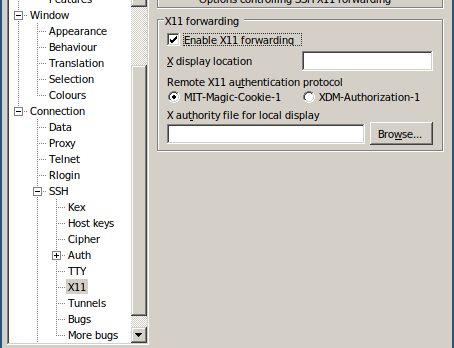
After connecting to Monsoon, running the GUI program with srun will create your window.
For some programs, such as MatLab, in order to ensure the window appears, add the ––pty flag to srun.
Restoring Deleted Files
What if I delete a file that I need?
Snapshot of all home user directories are taken twice a day. What this means is if you accidentally delete a file from your home directory that you need back, if it was created before a snapshot window, you will be able to restore that file. If you do an ls of the snapshot directory (ls /home/.snapshot), you may see something like the following:
@GMT-2019.02.09-05.00.01 @GMT-2019.02.10-18.00.01 @GMT-2019.02.12-05.00.01 latest
@GMT-2019.02.09-18.00.02 @GMT-2019.02.11-05.00.01 @GMT-2019.02.12-18.00.01
@GMT-2019.02.10-05.00.01 @GMT-2019.02.11-18.00.01 @GMT-2019.02.13-05.00.01
Each of the directories starting with @GMT are a backup. If my userid is ricky I can check my files like so:
if I know I had my file before 6pm on the 12th. I would see all of the files that I had at the time of the snapshot. If there were a file called dask_test.py that I needed to restore from that snapshot, I could type in the following:
Your file would then be restored.
Requesting Certain Node Generations
Monsoon has four generations of nodes ordered by age (oldest first):
- Sandy Bridge Xeon, 4 socket, 8 core per socket, 2.20GHz, 384GB mem # request with #SBATCH -C sb
- Haswell Xeon, 2 socket, 12 core per socket, 2.50GHz, 128GB mem # request with #SBATCH -C hw
- Broadwell Xeon, 2 socket, 14 core per socket, 2.40GHz, 128GB mem # request with #SBATCH -C bw
- Skylake Xeon, 2 socket, 14 core per socket, 2.60GHz, 196GB mem # request with #SBATCH -C sl
To select a certain generation, just put #SBATCH -C <generation> in the job. For instance to have a job run on Broadwell nodes only:
#!/bin/bash
#SBATCH ––job-name=myjob                    # job name
#SBATCH ––output=/scratch/abc123/output.txt # job output
#SBATCH ––time=6:00
#SBATCH ––workdir=/scratch/abc123           # work directory
#SBATCH ––mem=1000                          # 2GB of memory
#SBATCH -C bw              # select the Broadwell generation

# load a module, for example
module load python/2.7.5

# run your application, precede the application command with srun
# a couple example applications ...
srun date
srun sleep 30
srun date
How to request specific model of GPU
Please refer to our documentation page GPUs on Monsoon to learn how to request specific GPU models.
RStudio Missing Project Folder
/project areas are not available when running through RStudio due to our automounting of projects. To resolve this, please create a ~/.Rprofile file, if not already created, and append the following to it:
cat <<<EOF
system("echo 'Ensuring my project directory is mounted …'")
system("ls /projects/<proj_name>/PROJ_DETAILS")
EOF >> ~/.Rprofile
The echo command is optional.
Now when R or RStudio starts, the project folder will be mounted, and available.
Support for rgdal
Often researchers utilizing R, and geospatial tools will lean on a package called rgdal. In order to utilize rgdal on monsoon, a number of external software packages must first be made available to R both for the initial rgdal installation, as well as for subsequent usage.
We have prepared a full explanation of the process on our HPC forum, here: How do I install/use the ‘rgdal' package for R on Monsoon?
Similarly, a more generalized explanation of how to use R modules with Monsoon is here: What is the preferred way to install R packages/libraries on Monsoon?
Using conda environments in the ondemand jupyter app
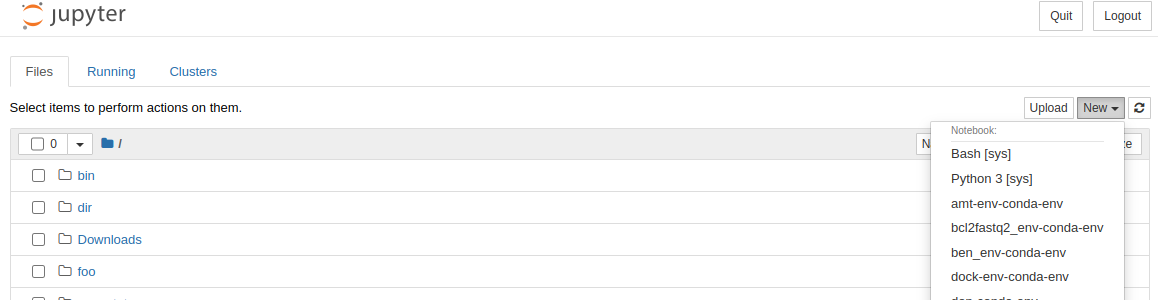
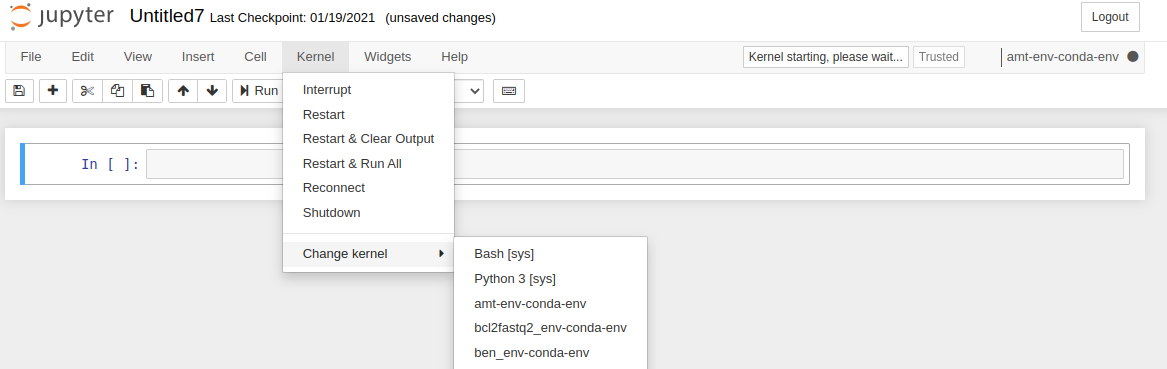
The jupyter app for ondemand automatically looks for any conda environments you may have installed on monsoon. If any of these environments has python and ipykernel, then the app loads them up and you can select them as a kernel named *-conda-env. This gives you access to specialized python modules that are not in the base environment, like BeautifulSoup for example.
Here's how you can select a kernel on the home screen on juptyer:
Or from within a notebook:
Here's how you can install the ipykernel package in your conda env:
If the conda install is successful you should be able to load ipykernel without error like this:
And there will be a jupyter-kernelspec executable in the environment:
# if this command prints out a path different from your environment's /bin
# then jupyter won't see it
# this would be from an error with the ipykernel install for your conda env
which jupyter-kernelspec
If you are still using python2 then you may have to install backports like this: